How to Add Page Numbers in Google Docs
Adding page numbers in Google Docs is a simple but essential step when creating professional documents like reports, essays, or business proposals. This guide walks you through the process step by step, along with a few customization tips.
Why Use Page Numbers?
Page numbers help:
- Keep documents organized
- Make navigation easier for readers
- Add a professional touch to your work
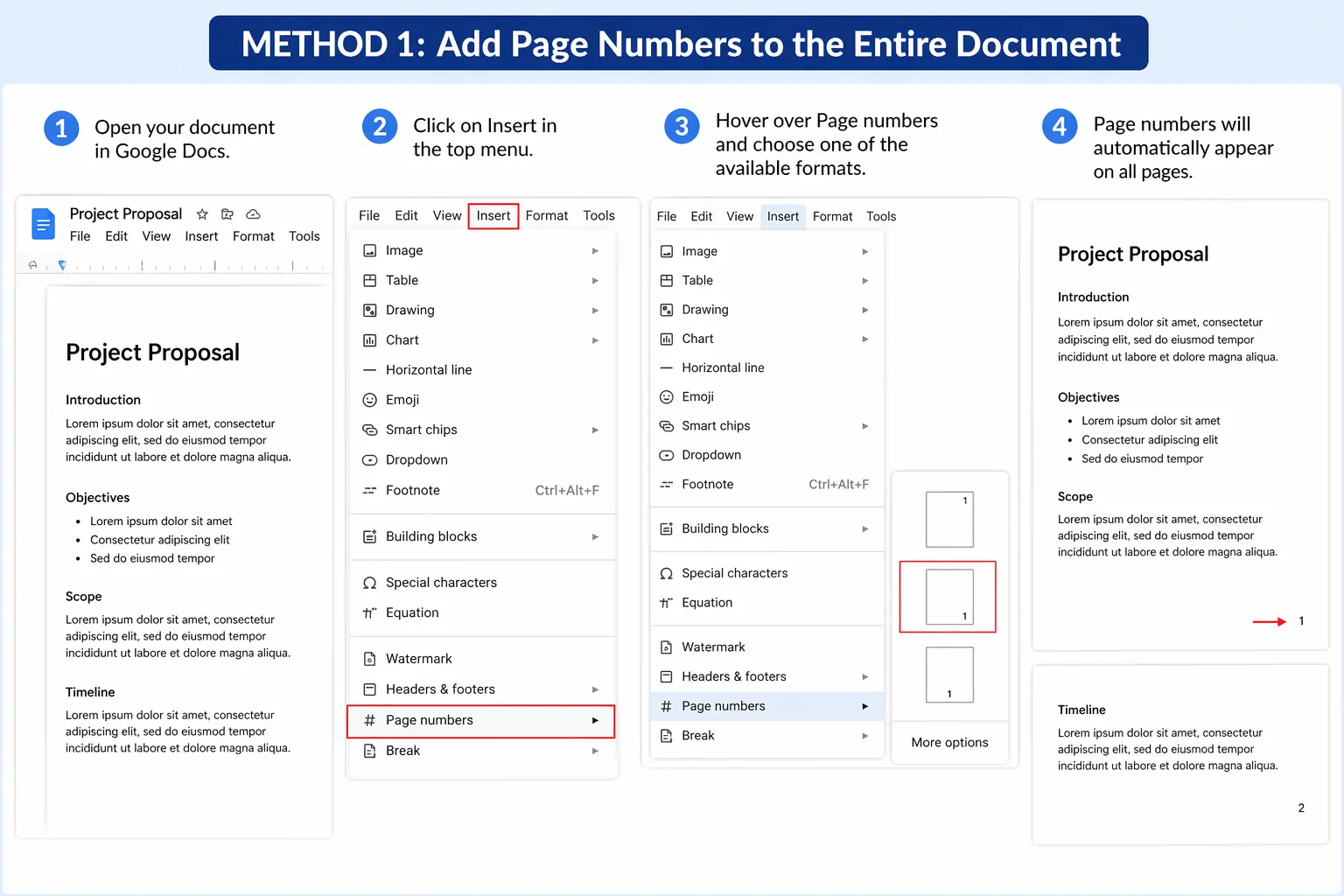
Method 1: Add Page Numbers to the Entire Document
- Open your document in Google Docs
- Click on Insert in the top menu
- Hover over Page numbers
- Choose one of the available formats:
- Top-right corner
- Bottom-right corner
- With or without the first page
Once selected, page numbers will automatically appear on all pages.
Method 2: Customize Page Numbers
If you want more control over formatting:
- Click Insert → Page numbers → More options
- In the dialog box, you can:
- Choose position (header or footer)
- Decide whether to show numbers on the first page
- Set a starting number (e.g., start from page 2 or 5)
- Click Apply
Method 3: Skip Page Number on the First Page
This is useful for title pages:
- Double-click the header or footer area
- Check the box labeled Different first page
- The first page will no longer display a number
Method 4: Start Page Numbers Later in the Document
If you want numbering to begin on a specific page:
- Place your cursor at the beginning of the page where numbering should start
- Click Insert → Break → Section break (next page)
- Double-click the header/footer of the new section
- Uncheck Link to previous
- Insert page numbers and customize the starting number
Tips for Better Formatting
- Use headers for formal documents and footers for casual ones
- Keep numbering consistent throughout
- Combine page numbers with document titles for a polished look
Conclusion
Adding page numbers in Google Docs is quick and highly customizable. Whether you need simple numbering or advanced formatting across sections, Google Docs provides flexible tools to meet your needs. Once you get familiar with these steps, you’ll be able to format documents more efficiently and professionally.
