How to Build a PC: A Step-by-Step Guide for Beginners
Building your own PC is an excellent way to get a computer tailored to your needs, whether you want a powerful gaming machine, a reliable workstation, or an affordable computer for everyday use. Although assembling a computer may seem complicated at first, the process becomes much easier when you understand the components, check compatibility, and follow a clear set of instructions.
In this guide, you’ll learn how to build a PC from scratch, which components you need, how to assemble everything safely, and how to install an operating system. With the right preparation, most beginners can complete their first build in approximately two to four hours.
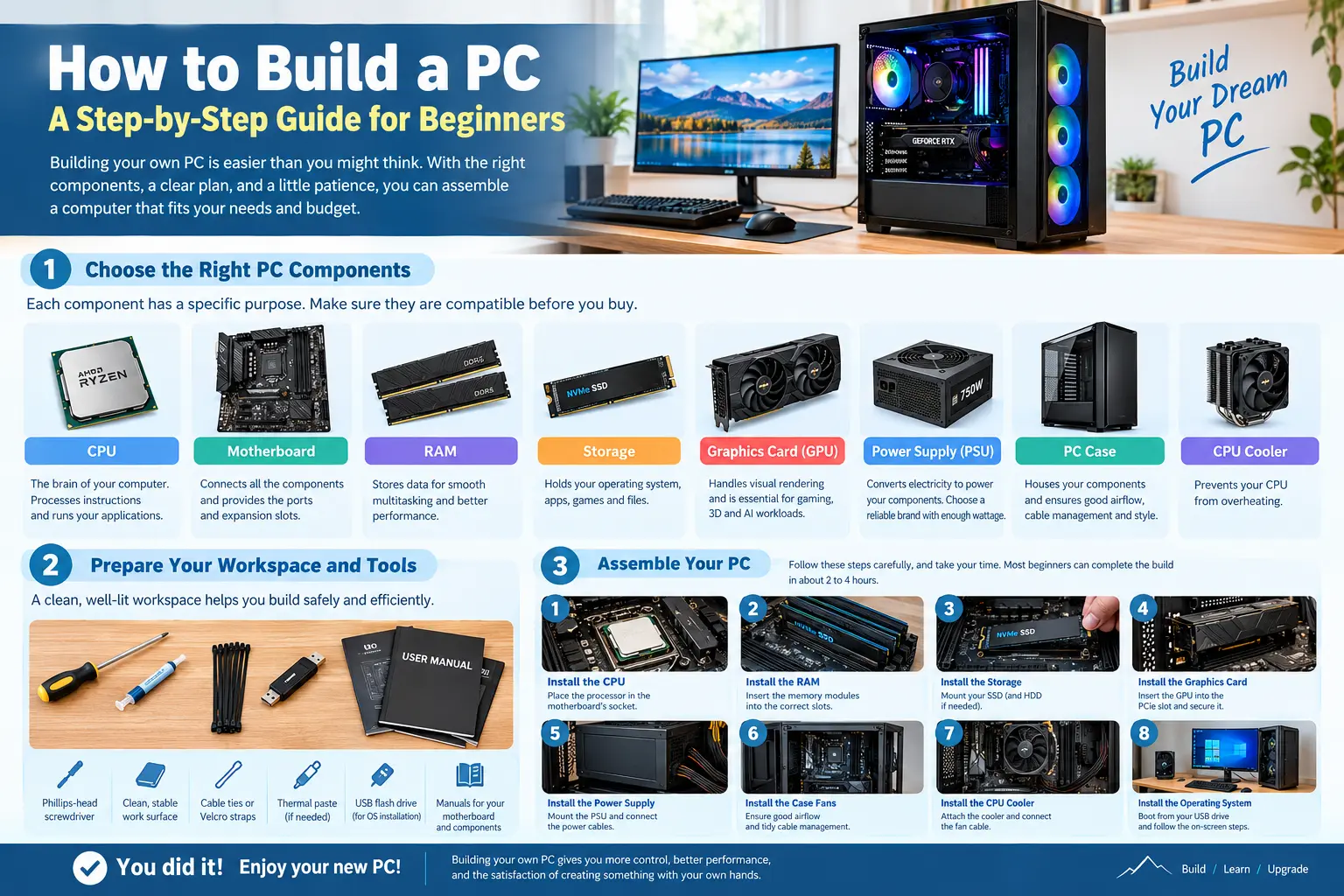
1. Choose the Right PC Components
Before you start building, you need to purchase all the necessary hardware. Every component has a specific purpose, and compatibility is essential to ensure your computer works correctly.
CPU (Central Processing Unit)
The CPU is the brain of your computer. It processes instructions and determines how efficiently your PC handles applications, games, and demanding workloads.
Popular choices include AMD Ryzen processors and Intel Core processors. When selecting a CPU, consider your budget, performance requirements, power consumption, and motherboard compatibility.
For general productivity and gaming, a modern midrange processor is often sufficient. Users who edit videos, render 3D graphics, or run demanding professional applications may benefit from a more powerful model.
Motherboard
The motherboard connects the CPU, RAM, storage, graphics card, and other components. It also provides the ports and expansion slots you need to connect peripherals.
Check the CPU socket, chipset, RAM compatibility, motherboard size, and available storage connections before buying one. Common motherboard sizes include ATX, Micro-ATX, and Mini-ITX.
Your motherboard should also provide enough USB ports, fan headers, and expansion options for your intended use.
RAM (Memory)
RAM temporarily stores the data your computer needs while running applications. Having sufficient memory helps your system multitask smoothly and reduces performance problems when multiple programs are open.
For a new general-purpose desktop, 16 GB is a reasonable starting point, while 32 GB is a good choice for demanding multitasking and modern gaming. Professional video editing and other memory-intensive workloads may require 64 GB or more.
If possible, purchase a matched memory kit with two modules, such as 2 × 16 GB, and install them in the motherboard’s recommended slots. Make sure you select the correct memory generation, such as DDR4 or DDR5.
Storage: SSD or HDD
Storage holds your operating system, applications, games, documents, and other files.
An NVMe SSD is an excellent choice for a modern PC because it offers fast boot times, quick application loading, and responsive system performance. A 1 TB SSD is a practical starting point for most users.
You can also install a traditional hard disk drive (HDD) for inexpensive bulk storage. However, installing Windows and frequently used applications on an SSD generally provides a much better experience.
Graphics Card (GPU)
The graphics processing unit handles visual rendering and many parallel computing tasks. A dedicated graphics card is particularly important for gaming, 3D rendering, and certain AI workloads.
If you mainly browse the internet, use office software, or stream videos, a CPU with integrated graphics may be enough. This approach can reduce the initial cost of your build.
When selecting a graphics card, consider its performance, available video memory, physical dimensions, power requirements, and compatibility with your monitor.
Power Supply (PSU)
The power supply converts electricity from your wall outlet into the power required by your PC components. Choosing a reliable PSU is essential for system stability and long-term safety.
Select a unit from a reputable manufacturer with sufficient wattage for your CPU and graphics card. Also check its efficiency certification, connector requirements, and warranty.
Never choose a power supply based on wattage alone. Quality, electrical protections, and compatibility are equally important.
PC Case
The case houses your components and influences cooling, noise, cable management, and appearance.
Before purchasing a case, confirm that it supports your motherboard size and provides enough room for your graphics card, CPU cooler, and power supply. Good airflow is especially important for powerful gaming PCs.
Look for cases with practical cable-routing options and enough fan mounts to keep temperatures under control.
CPU Cooler
The CPU cooler prevents your processor from overheating during operation. Some processors include a stock cooler, while others require a separate cooling solution.
Air coolers are generally affordable and straightforward to install. Liquid coolers can be useful for certain high-performance configurations, although they are not necessary for every PC.
Check the cooler’s socket compatibility, case clearance, and cooling capacity before purchasing it.
2. Prepare Your Workspace and Tools
Before assembling your PC, prepare a clean, well-lit workspace with enough room to organize your components.
You will need:
- A Phillips-head screwdriver.
- A clean, stable work surface.
- Cable ties or Velcro straps for cable management.
- Thermal paste if your cooler does not already have it applied.
- A USB flash drive for installing Windows or Linux.
- Your motherboard and component manuals.
Avoid working on carpets when possible, and take precautions against static electricity. Touch an unpainted metal part of the case before handling components, or use an appropriate anti-static wrist strap.
Keep small screws organized and avoid touching exposed electrical contacts on your components.
3. Install the CPU on the Motherboard
Installing the CPU is one of the most important steps because the processor and motherboard socket are delicate.
First, place the motherboard on its cardboard box or another clean, nonconductive surface. Open the CPU socket according to the manufacturer’s instructions.
Locate the alignment markers on the CPU and socket. Carefully position the processor and lower it into place without forcing it. The installation method differs between CPU socket designs, so follow the motherboard manual.
Once the processor is correctly positioned, secure the socket mechanism.
Never touch or bend delicate socket pins. If the CPU does not fit naturally into the correct position, stop and check the alignment.
4. Install RAM and the SSD
With the CPU installed, you can add the memory and storage.
Installing RAM
Open the retaining clips on the appropriate RAM slots. Align the notch on each memory module with the slot and press down evenly until the module is fully seated.
When using two RAM modules, consult your motherboard manual for the recommended slots, which are commonly A2 and B2.
Installing an M.2 SSD
Locate an available M.2 slot on the motherboard. Remove its heatsink if necessary, insert the SSD at the recommended angle, and secure it using the provided screw or latch.
If your motherboard includes an SSD heatsink, remove any protective film from its thermal pad before reinstalling the heatsink.
Check that the SSD is securely installed and that no screws are missing.
5. Install the CPU Cooler
The next step is to install the cooling system.
If thermal paste is not pre-applied to the cooler, place an appropriate amount on the CPU according to the cooler manufacturer’s instructions. Attach the cooler using the supplied mounting hardware and tighten the fasteners evenly.
Avoid overtightening the screws, as excessive pressure can damage components.
Connect the cooler’s fan cable to the motherboard’s CPU_FAN header. If you use a liquid cooler, follow the manufacturer’s instructions for connecting its pump, radiator fans, and power cables.
6. Install the Motherboard in the Case
Prepare the PC case by removing its side panels and checking the motherboard standoffs. These small metal supports prevent the motherboard from touching the case directly.
Install the separate rear I/O shield if your motherboard requires one. Many modern motherboards have an integrated I/O shield.
Carefully lower the motherboard into the case, aligning its mounting holes with the standoffs. Secure it with the appropriate screws without overtightening them.
Double-check that every mounting point is properly aligned and that no extra standoff is positioned beneath an area without a mounting hole.
7. Install the Power Supply and Graphics Card
Install the PSU in its designated compartment and secure it with the supplied screws. If the unit is modular, connect the necessary cables according to the PSU manual.
Next, install the graphics card if your build includes one.
Remove the appropriate expansion-slot covers from the rear of the case. Insert the GPU into the motherboard’s primary PCIe x16 slot until it is properly seated, then secure it to the case.
Connect the required GPU power cables. Some modern graphics cards use newer high-power connectors, so follow the manufacturer’s guidance and ensure the connector is fully inserted.
For modular PSUs, never reuse cables from another power supply unless the manufacturer explicitly confirms they are compatible.
8. Connect the Remaining Cables
Cable connections can be confusing for first-time builders, but the motherboard manual provides the information you need.
Connect the following components as applicable:
- The 24-pin motherboard power cable.
- The CPU EPS power cable, usually located near the top of the motherboard.
- The graphics card power cables.
- SATA power and data cables for compatible drives.
- Case fans and CPU cooler cables.
- Front-panel power switch, reset switch, and indicator cables.
- Front USB and audio connectors.
Pay particular attention to the small front-panel connectors because their positions vary between motherboard models.
Organize cables behind the motherboard tray when possible. Good cable management improves airflow and makes future upgrades easier.
Before powering on the PC, verify that no loose cables can interfere with fans.
9. Turn On the PC for the First Time
Once everything is connected, perform a final inspection.
Make sure the CPU cooler is securely mounted, the RAM and GPU are fully seated, and the power cables are connected. Connect your monitor, keyboard, and mouse.
Plug the power cable into the PSU, switch the PSU on, and press the case’s power button.
The first startup may take longer than usual because some motherboards perform memory training. Allow the system time to complete this process.
If the PC starts successfully, enter the BIOS or UEFI setup by pressing the appropriate key during startup. Common keys include Delete and F2, depending on the motherboard.
Check that the CPU, installed RAM, and storage devices are detected correctly.
If your PC does not start, do not immediately assume that a component is defective. Check the power switch connection, PSU switch, motherboard power cables, RAM seating, and diagnostic indicators first.
10. Install Windows or Linux
After confirming that your hardware works, install an operating system.
For Windows, create an installation USB using Microsoft’s official installation media. Boot the PC from the USB drive, follow the setup instructions, and select the appropriate storage drive.
Linux distributions are another option, especially if you prefer open-source software or need a development environment.
Once the operating system is installed:
- Run the operating system’s updates.
- Install the appropriate motherboard chipset and network drivers.
- Install the graphics card driver from its manufacturer’s official website.
- Activate Windows if you installed Windows and a license is required.
- Configure your preferred display resolution and refresh rate.
Avoid downloading drivers from unfamiliar websites. Official manufacturer sources are generally the safest choice.
11. Test Your New PC
Before relying on your new computer, verify that everything operates correctly.
Check the CPU and GPU temperatures under normal use and during demanding workloads. Monitor system stability, fan operation, and storage health.
Run a memory diagnostic or an appropriate stability test if you want additional confidence in your build. Watch for unexpected shutdowns, crashes, unusual noises, or excessive temperatures.
If you installed a dedicated graphics card, connect your monitor to the graphics card’s video output when using it. The motherboard’s video ports generally require a CPU with integrated graphics.
You can also enable the supported memory profile, such as AMD EXPO or Intel XMP, in BIOS to achieve the memory kit’s advertised speeds. Enable it only after confirming that the system is stable at its default settings.
12. How Much Does It Cost to Build a PC?
The cost depends on your performance goals, local component prices, and whether you need peripherals such as a monitor and keyboard.
The following ranges are illustrative estimates in US dollars, not current retailer quotes.
| PC Type | Estimated Budget | Typical Use |
|---|---|---|
| Budget PC | $400–$600 | Everyday tasks and light gaming |
| Midrange PC | $700–$1,000 | Gaming, productivity, and multitasking |
| High-performance PC | $1,200–$2,000 | Demanding gaming and content creation |
| Enthusiast PC | $2,000+ | High-end gaming and specialized workloads |
These budgets can vary considerably depending on the graphics card, processor, storage capacity, and component availability. A monitor, operating system license, and other peripherals may increase the total cost.
For the best value, prioritize the components that matter most for your intended workload rather than spending heavily on decorative features.
13. Common Mistakes to Avoid When Building a PC
Even experienced builders can make mistakes. These common issues are worth avoiding:
Buying incompatible components: Check CPU socket, memory generation, case dimensions, PSU connectors, and cooler clearance before purchasing.
Forcing components into place: CPUs, RAM modules, and expansion cards must be aligned correctly. Stop if something does not fit naturally.
Forgetting motherboard standoffs: Incorrect standoff placement can cause electrical shorts and damage the motherboard.
Connecting the monitor to the wrong port: If you have a dedicated graphics card, connect the monitor to its video output unless you have a specific reason to use integrated graphics.
Using an inadequate PSU: Choose a quality power supply that supports your components and provides sufficient power capacity.
Ignoring cooling and airflow: Ensure fans are installed correctly and that the case has sufficient ventilation.
Skipping the manuals: Motherboard and cooler manuals contain important information about connectors, mounting hardware, and recommended installation procedures.
Frequently Asked Questions
How long does it take to build a PC?
A beginner usually needs around two to four hours to assemble a standard desktop PC. Complex builds, troubleshooting, and operating system installation can take longer.
Is building a PC difficult for beginners?
Building a PC is manageable for most beginners who follow instructions carefully. The most important skills are patience, attention to detail, and checking component compatibility.
What tools do I need to build a PC?
A Phillips-head screwdriver is usually the primary tool required. Cable ties, an anti-static wrist strap, and a small container for screws can also be useful.
Can I build a PC without a graphics card?
Yes. A processor with integrated graphics can run a PC without a dedicated GPU. However, not every CPU includes integrated graphics, and performance may be insufficient for demanding games or graphics-intensive applications.
Do I need to buy Windows separately?
You can install Windows using official installation media, but activation generally requires a valid license unless you already have an eligible digital license. Linux distributions offer an alternative for users who do not require Windows-specific software.
Is it cheaper to build a PC than to buy one?
Building a PC can provide better control over component quality, performance, and future upgrades. However, prebuilt systems can sometimes be more affordable during promotions, so comparing complete-system prices is worthwhile.
How much RAM do I need for a new PC?
Sixteen gigabytes is suitable for many everyday tasks, while 32 GB is a strong general-purpose choice for modern gaming and multitasking. Professional workloads may require more.
What should I do if my PC turns on but shows no display?
Check the monitor input, video cable, graphics card installation, RAM seating, and motherboard diagnostic lights. Also confirm that the required CPU and GPU power cables are connected.
Conclusion
Learning how to build a PC is a valuable skill that gives you greater control over your computer’s performance, cost, and upgrade options. By selecting compatible components, assembling them carefully, and testing the system before regular use, you can create a computer that meets your needs for years to come.
Start with a clear budget and a list of compatible parts, follow the motherboard and component manuals, and take your time during assembly. With proper preparation, building your first PC can be a rewarding and practical project.
