How to Add Stickers to a Photo Using Canva (Step-by-Step Guide)
Canva is one of the easiest and most powerful online design tools for editing photos. With its large sticker library and drag-and-drop interface, adding stickers to a photo in Canva takes just a few minutes—even for beginners.
In this guide, you’ll learn exactly how to add stickers to a photo using Canva on both desktop and mobile.
Why Use Canva to Add Stickers to Photos?
Canva is popular because it offers:
- A huge library of free and premium stickers
- Easy drag-and-drop editing
- Works on desktop, tablet, and mobile
- No design skills required
- Quick sharing and downloading options
Step 1: Open Canva and Log In
Go to Canva’s website or open the Canva app on your phone. Log in to your account. If you don’t have one, you can create a free account in minutes.
Step 2: Upload Your Photo
- Click Create a design or Edit a photo
- Select Uploads from the left menu
- Click Upload files and choose your photo
Your image will appear on the canvas.
Step 3: Open the Stickers Library
- Click Elements on the left panel
- Scroll to the Stickers section
- Browse categories or search for specific stickers like:
- Emojis
- Arrows
- Text bubbles
- Icons
- Animated stickers (for videos or GIFs)
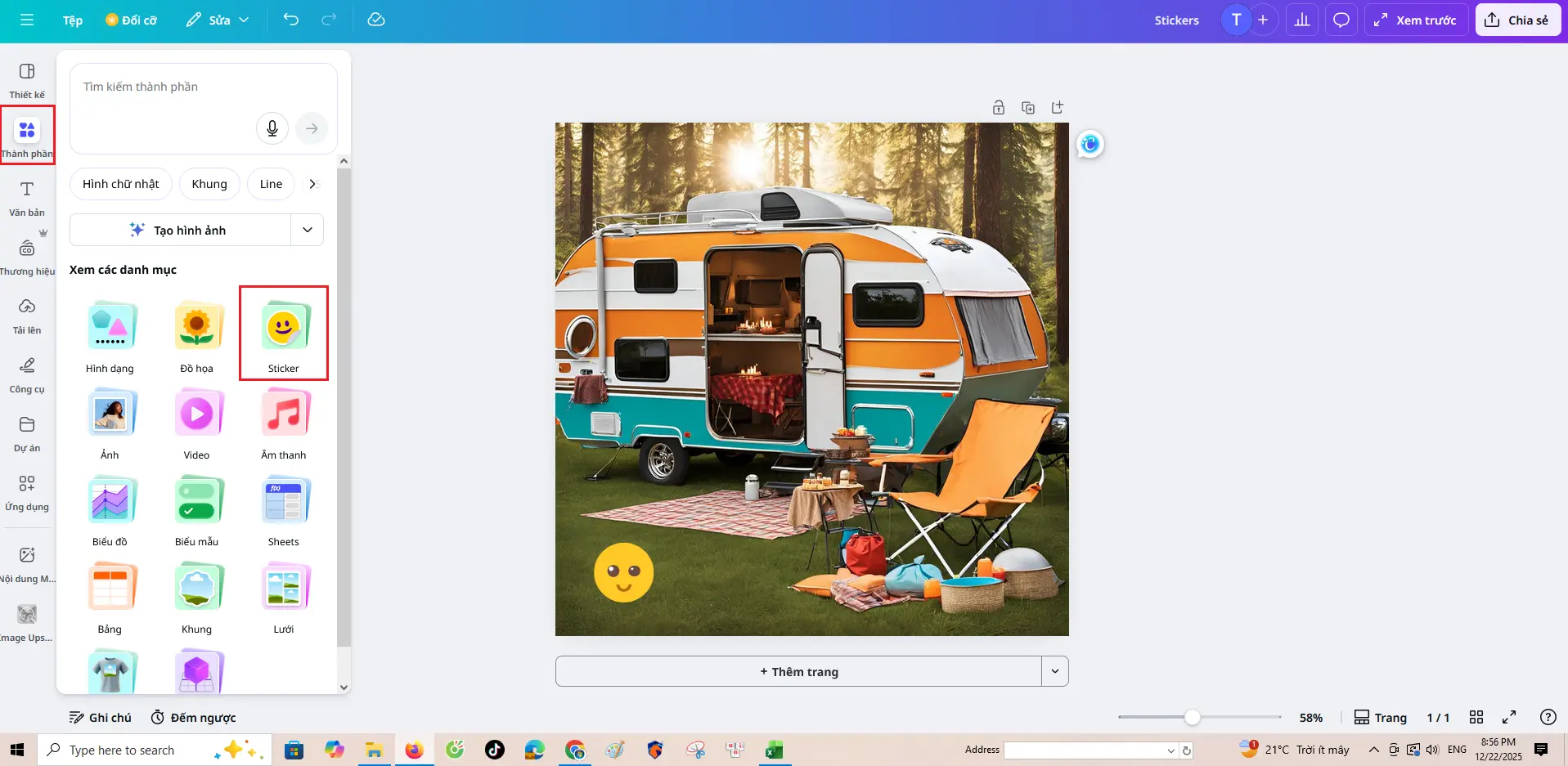
Step 4: Add a Sticker to Your Photo
- Click on any sticker to add it to your photo
- Drag it to the desired position
- Resize by pulling the corners
- Rotate using the rotate handle
You can add multiple stickers if needed.
Step 5: Customize the Sticker
Depending on the sticker type, you can:
- Change colors
- Adjust transparency
- Flip or layer stickers
- Animate stickers (for videos or stories)
Use the toolbar above the canvas to access these options.
Step 6: Download or Share Your Photo
- Click Share → Download
- Choose your file type:
- JPG (smaller size)
- PNG (better quality)
- Click Download
You can also share directly to social media from Canva.
Tips for Using Stickers in Canva
- Use stickers that match your photo’s theme
- Avoid covering important parts of the image
- Don’t use too many stickers at once
- Keep branding consistent for marketing designs
- Use PNG stickers for a clean, professional look
Can You Add Your Own Stickers in Canva?
Yes! You can upload your own sticker files:
- Go to Uploads
- Upload PNG or SVG sticker files
- Drag them onto your photo like regular stickers
Conclusion
Adding stickers to photos using Canva is fast, simple, and fun. Whether you’re creating social media posts, memes, or marketing visuals, Canva’s sticker tools help you enhance photos with just a few clicks.
Try Canva today and bring your photos to life with creative stickers!
