How to Add a Video to Google Slides (Step-by-Step Guide)
Adding a video to Google Slides is a great way to make your presentation more engaging and dynamic. Whether you want to include a YouTube clip, a video from Google Drive, or a local video file, Google Slides makes the process simple.
In this guide, you’ll learn how to add a video to Google Slides using different methods, plus tips for customizing video playback during your presentation.
Why Add a Video to Google Slides?
Videos can:
- Explain complex ideas more clearly
- Increase audience engagement
- Make presentations more professional and interactive
- Save time by replacing long explanations
Google Slides supports videos directly, so you don’t need third-party tools.
Method 1: Add a YouTube Video to Google Slides
This is the most common and easiest method.
Steps:
- Open your presentation in Google Slides
- Click on the slide where you want the video
- Go to Insert → Video
- Select the YouTube tab
- Search for a video or paste the YouTube URL
- Click Select
The video will appear on your slide and can be resized or repositioned.
Method 2: Add a Video from Google Drive
If your video is not on YouTube, you can upload it to Google Drive first.
Steps:
- Upload your video to Google Drive
- Open Google Slides
- Select the target slide
- Click Insert → Video
- Choose the Google Drive tab
- Select your video and click Insert
✔ Supported formats include MP4, MOV, and AVI.
Method 3: Add a Local Video File (Indirect Method)
Google Slides does not allow direct uploads from your computer. You must upload the video to Google Drive first.
Steps:
- Go to drive.google.com
- Click New → File upload
- Upload your video
- Follow Method 2 to insert it into Google Slides
How to Edit Video Playback Settings
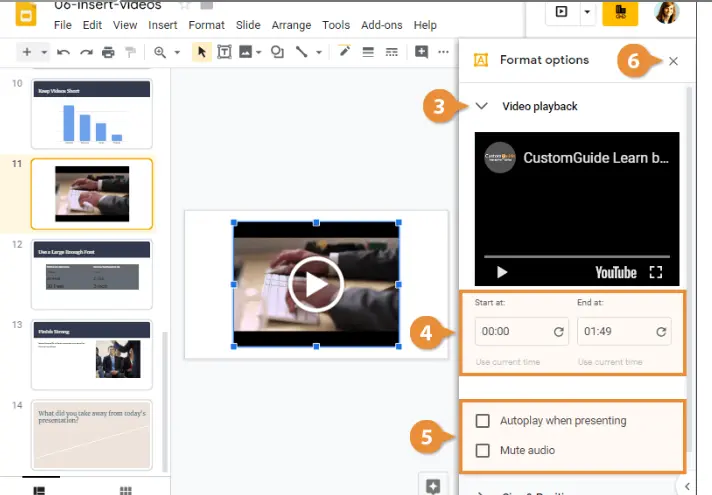
Once the video is inserted, you can control how it plays.
To adjust settings:
- Click on the video in your slide
- Click Format options (or right-click → Format options)
- Customize:
- Start and end time
- Autoplay when presenting
- Mute audio
- Video size and position
These settings help you sync the video perfectly with your presentation.
Tips for Using Videos in Google Slides
- Keep videos short (30–90 seconds is ideal)
- Use autoplay only when necessary
- Test video playback before presenting
- Ensure you have internet access for YouTube videos
- Use captions if available for accessibility
Common Problems and Solutions
Video won’t play
- Check your internet connection
- Make sure the video isn’t private or restricted
Audience can’t see the video
- Use “Present” mode
- Confirm Drive sharing permissions
Audio not working
- Check system sound settings
- Make sure the video isn’t muted in Format options
Final Thoughts
Knowing how to add a video to Google Slides can significantly improve the quality of your presentations. Whether you’re using YouTube or Google Drive, the process is quick and user-friendly. With proper playback settings and testing, your slides will look polished and professional.
