How to Add Widgets to the Lock Screen
Lock screen widgets are a convenient way to access important information—like weather, calendar events, music controls, or notifications—without unlocking your phone. With recent updates to both iOS and Android, customizing lock screen widgets has become easier and more powerful than ever. This guide will walk you through how to add widgets to the lock screen on the most popular mobile platforms.
What Are Lock Screen Widgets?
Lock screen widgets are small interactive elements that display real-time information directly on your lock screen. Depending on your device, they can show:
- Time and date details
- Weather updates
- Battery percentage
- Calendar events
- Fitness activity
- Music playback controls
They help you save time and stay informed at a glance.
How to Add Widgets to the Lock Screen on iPhone (iOS 16 and Later)
Apple introduced lock screen widgets starting with iOS 16.
Step-by-Step Instructions
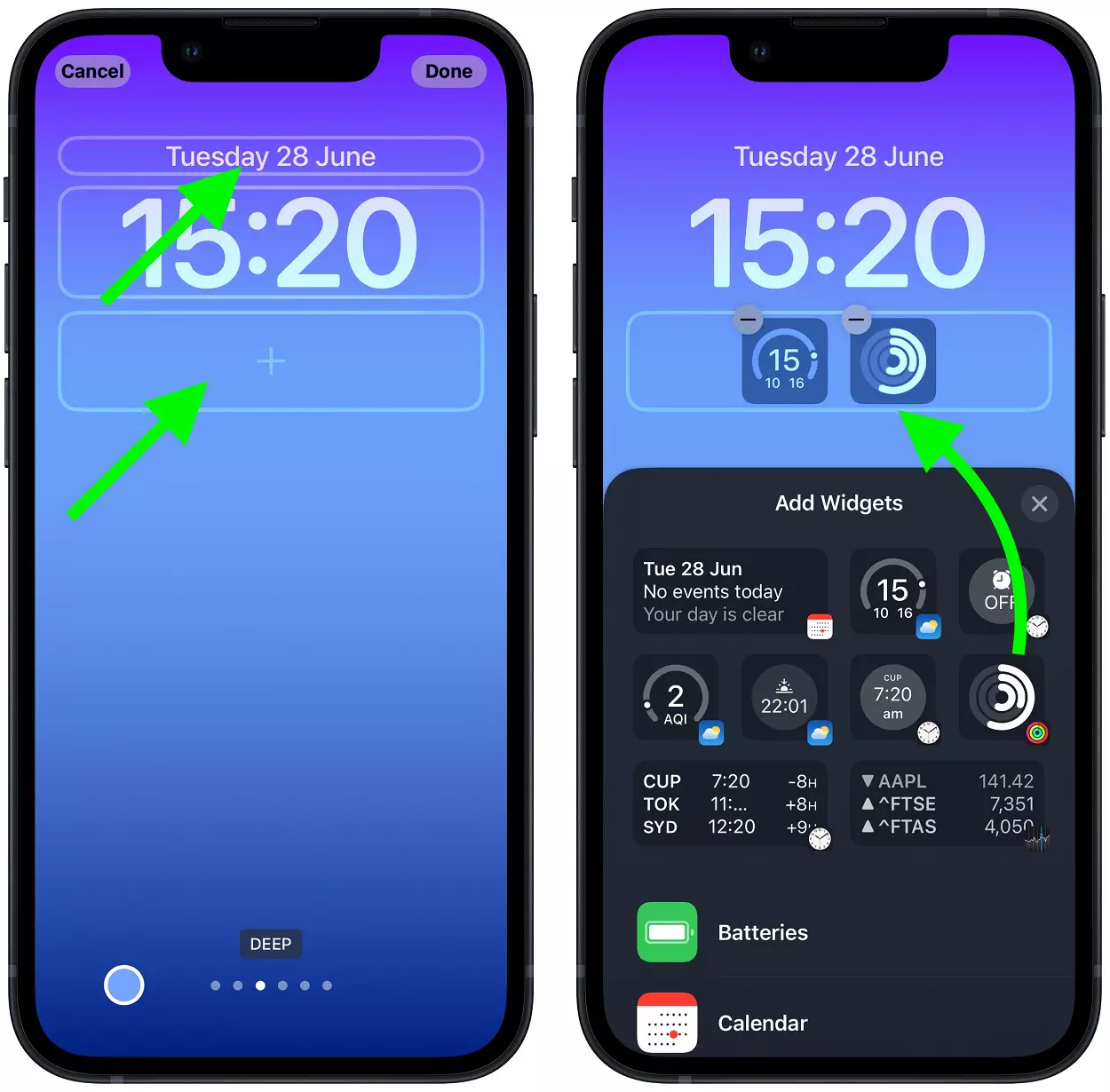
- Wake your iPhone and stay on the lock screen
- Long-press anywhere on the lock screen
- Tap Customize
- Select Lock Screen
- Tap the widget area (below the clock)
- Choose widgets from Apple or supported third-party apps
- Drag and drop widgets into place
- Tap Done to save changes
Notes
- You can add multiple widgets, but space is limited
- Not all apps support lock screen widgets
- Widgets update automatically in real time
How to Add Widgets to the Lock Screen on Android
Android lock screen widgets vary by manufacturer and Android version, but most modern devices support them in some form.
Method 1: Using System Lock Screen Settings
- Open Settings
- Go to Lock Screen
- Tap Widgets or Lock Screen Widgets
- Toggle on the widgets you want (clock, weather, calendar, etc.)
Method 2: Using Third-Party Apps
If your device has limited native support, you can use apps like:
- Lock screen widget apps
- Clock or weather widget apps
- Always-on display customization tools
After installation:
- Grant necessary permissions
- Enable lock screen display
- Customize widget layout within the app
Tips for Using Lock Screen Widgets Effectively
- Keep it minimal: Too many widgets can clutter your screen
- Choose useful info: Weather, battery, and calendar are most practical
- Check battery usage: Some widgets update frequently and may drain battery
- Use trusted apps: Only install widgets from reliable developers
Common Issues and Solutions
Widgets not showing?
- Make sure your OS is up to date
- Check app permissions
- Restart your device
Widgets not updating?
- Disable battery optimization for the widget app
- Ensure background app refresh is enabled
Conclusion
Adding widgets to your lock screen is a simple yet powerful way to personalize your phone and improve daily efficiency. Whether you’re using an iPhone or an Android device, lock screen widgets let you access essential information instantly—without unlocking your phone.
Try different widget combinations and find the setup that works best for you.
