

Uber allows riders to add extra stops to a trip, making it easy to pick up a friend, grab something quickly, or drop someone off before reaching your final destination. Here’s everything you need to know about how to add a stop on Uber and what to keep in mind.
What Is an Uber Stop?
An Uber stop is an additional location added between your pickup point and final destination. Uber is designed for short, quick stops, not long waiting periods. Most drivers expect stops to last only a few minutes.
How to Add a Stop Before Requesting a Ride
This is the easiest and most recommended way.
- Open the Uber app
- Enter your pickup location
- Enter your destination
- Tap the “+” (Add stop) button next to the destination field
- Enter the address of your additional stop
- Reorder stops if needed by dragging them
- Request your ride
Uber will calculate the fare including the extra stop.
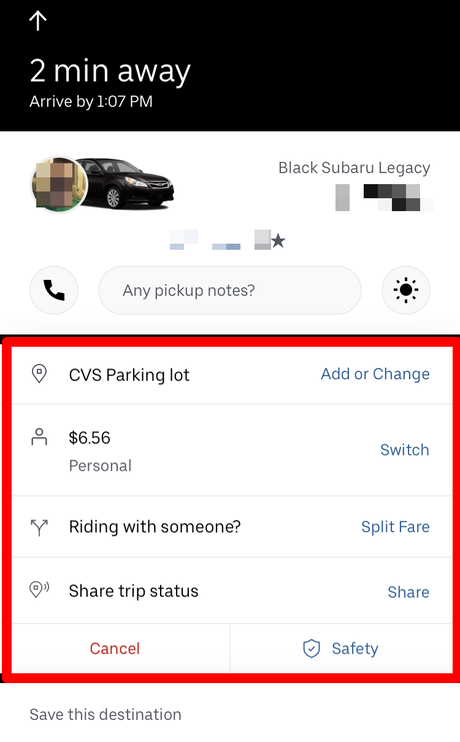
How to Add a Stop During an Uber Trip
If your plans change, you can add a stop while already in the car.
- Open the Uber app during your trip
- Tap the trip bar at the bottom of the screen
- Select “Add or change destination”
- Tap “Add stop”
- Enter the new address
⚠️ Note: Some drivers may decline added stops, especially during busy hours.
How Many Stops Can You Add on Uber?
- Uber typically allows up to 5 total stops (including the final destination)
- Availability may vary by city, ride type, or app version
Does Adding a Stop Cost More?
Yes. Adding a stop usually:
- Increases the total fare
- Extends travel time
- May include waiting charges if the stop takes too long
Fares are updated automatically when a stop is added.
Important Tips for Adding Stops on Uber
- Keep stops short (2–3 minutes is ideal)
- Inform your driver politely before adding a stop mid-trip
- Avoid adding stops for long errands like grocery shopping
- If you need extended waiting time, consider booking Uber Hourly (available in some cities)
Can a Driver Refuse a Stop?
Yes. Drivers are independent contractors and may decline:
- Long or unexpected stops
- Stops added without discussion
- Stops in unsafe or restricted areas
Being respectful and upfront increases your chances of a smooth ride.
Final Thoughts
Adding a stop on Uber is simple and convenient when planned properly. For the best experience, add stops before requesting the ride, keep them brief, and communicate clearly with your driver.
With these tips, you’ll be able to use Uber’s multi-stop feature efficiently and hassle-free.